

BigQuery, huh? What a thing it is. But you may be asking, what is it? And that is a good question. You see, I am writing these first few sentences in slightly confusing prose because … some people do get confused about BigQuery, and the extent of its abilities. That’s why this series is going to be as long as it can be (which is code for “I have no idea how long this is going to go”).
But, putting all that aside, let’s have a more concrete picture of what BigQuery is. BigQuery is a top of the line data warehousing and querying service which is queried and functions using an SQL-based language. You can query and import just about any form of structured or sem-structured data into BogQuery that you would want. You can do it with practically every service in the Google ecosystem and most services in data hungry ecosystems like Microsoft, Oracle, AWS and all other platforms that hold data.
BigQuery can act as a centralized repository system for your data, a storage system for archival data that may need to quickly be queried and even a way to create machine learning models from your data. And all of that will come with time, but for now we will attempt the most basic of BigQuery operations: reading data.
Before we begin, you should have a Google Cloud account with a project created with it. You should also have the BigQuery API enabled on that project. All of that is free, it just needs a card to activate.
A simple walk to a SELECT * call
First off, SELECT * is usually a bad idea. That’s not what you’re supposed to do, you just do it because you’re lazy. That being said, I am a bit lethargic. But I will give the steps for a simple, sustainable SELECT * call just to take a look at it.
The first question would be: how do you get to the console? You can use the panel to the left that has BigQuery on it. But, if you’re in the landing page of a project, just look right in front of you:

They push it as one of their Big 4 services on Google Cloud, if you will. So, when you click on the button that says BigQuery, you get to the console:
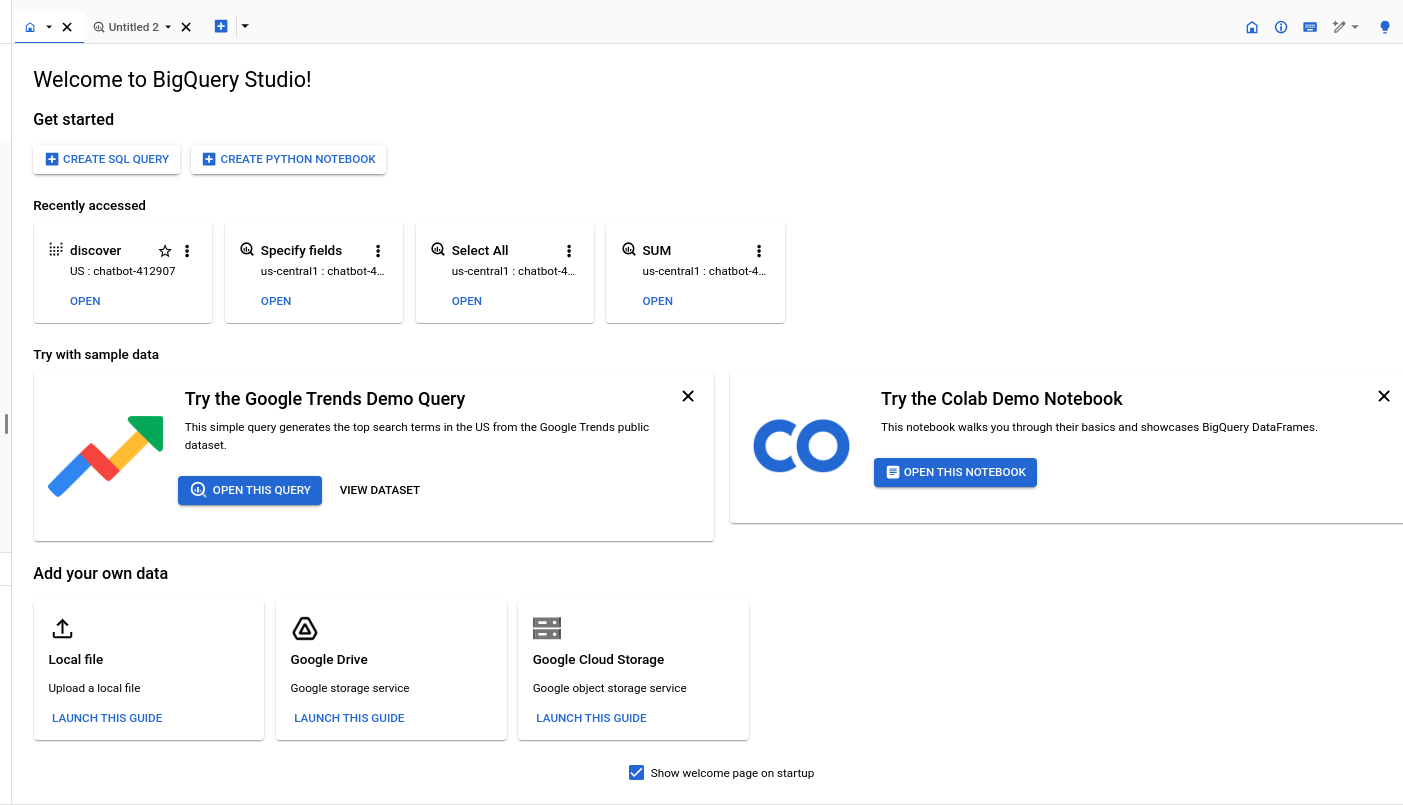
Let’s let the console hold our hand for now. Let’s use that Google Trends Demo Query that is so prominently displayed and click OPEN THIS QUERY. Which will open a tab with this query:
-- This query shows a list of the daily top Google Search terms.
SELECT
   refresh_date AS Day,
   term AS Top_Term,
       -- These search terms are in the top 25 in the US each day.
   rank,
FROM `bigquery-public-data.google_trends.top_terms`
WHERE
   rank = 1
       -- Choose only the top term each day.
   AND refresh_date >= DATE_SUB(CURRENT_DATE(), INTERVAL 2 WEEK)
       -- Filter to the last 2 weeks.
GROUP BY Day, Top_Term, rank
ORDER BY Day DESC
   -- Show the days in reverse chronological order.
A great query, with all the spice and mustard you could ask for. Also descriptive comments. If you want to write a query, this one is a great example. But I did promise you a SELECT * didn’t I?
In the explorer bar of the table, hit the three dots and select the Query option.
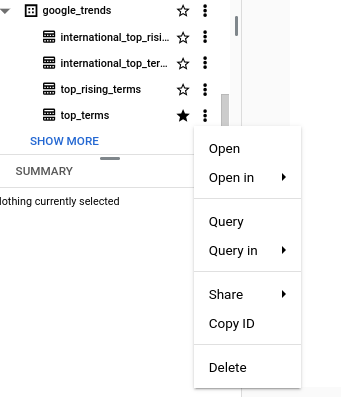
Let’s now see what that query is:

And if you can’t see that:
SELECT FROM `bigquery-public-data.google_trends.top_terms` WHERE refresh_date = "2024-03-26" LIMIT 1000Just take out the WHERE and bring in the * and we get:

Beautiful, that’s what we wanted. And that LIMIT keeps it in check. Awesome, right?
What’s Next?
This was just the beginning. As you saw with all those fancy buttons and tabs, there is a thousand things to do in BigQuery and we will attempt to do most of them in this blog series. UI, CLI, API, FBI, whatever way you want to we will figure this out. With that being said, explore some stuff yourself, it is incredibly fascinating in its depth.